

If you run a trading or distribution business in India, your daily reality looks something like this: goods arrive at one godown, get split across three branch warehouses, sell at different price lists depending on the customer tier, and occasionally come back as returns that need credit notes reconciled against future invoices — all while keeping GST documentation airtight. Most generic ERP pitches gloss over this complexity. This guide does not. As a consultant who has configured ERPNext for trading and distribution across multiple Indian companies, I’ll walk through exactly how the platform handles — and where it sometimes struggles with — the full procurement-to-collection cycle that trading businesses depend on.
This is a companion piece to our earlier coverage of ERPNext implementation costs and manufacturing workflows. Where manufacturing revolves around BOMs and work orders, trading and distribution revolves around inventory velocity, margin control, and receivables discipline. The ERPNext modules are the same — Stock, Buying, Selling, Accounts — but the configuration priorities are different.
1. What “Trading & Distribution Workflow” Actually Means
Before jumping into screens and doctypes, let’s be specific about what this workflow covers. A trading and distribution workflow is the complete cycle of:
Procurement → sourcing items from suppliers, negotiating rates, issuing purchase orders, receiving goods with GRN verification.
Warehousing → storing items across one or more locations, managing inter-branch transfers, tracking batch or serial numbers where needed, maintaining reorder levels.
Sales → quoting customers, booking orders, picking and dispatching from the right warehouse, invoicing with correct tax treatment.
Collections & Returns → collecting payments against invoices, processing sales returns and credit notes, reconciling advance payments, handling debit notes for purchase returns.
Reporting → stock valuation, margin analysis, receivables ageing, GST return data preparation.
In a distribution setup, the supplier-to-customer chain often includes one more layer: the company itself acts as a stockist or redistributor, buying in bulk and selling in smaller quantities to retailers or sub-distributors. This means UOM conversions (buying in cases, selling in pieces), tiered pricing, and credit management are front-and-centre.
ERPNext for trading and distribution covers this entire chain using its Stock, Buying, Selling, and Accounts modules, supplemented by the India Compliance App for GST-specific features.
2. End-to-End Trading Workflow in ERPNext
Here is the numbered step-by-step flow that a typical Indian trading company follows inside ERPNext. Each step maps to a specific document type (doctype).
- Material Request — a warehouse manager or auto-reorder triggers a request when stock hits the reorder level. ERPNext can auto-create these when enabled in Stock Settings (Material Request docs).
- Request for Quotation (RFQ) — optional but useful when comparing suppliers. Created from the Material Request.
- Supplier Quotation — suppliers respond with rates. The purchasing team compares.
- Purchase Order (PO) — finalised order sent to the chosen supplier. Locks in rate, quantity, delivery schedule.
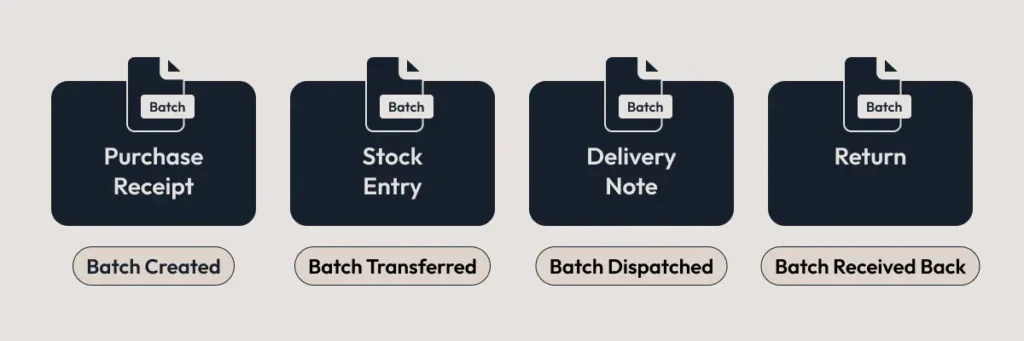
- Purchase Receipt (GRN) — goods physically received at the warehouse. Stock ledger is updated. Quality inspection can be mandatory here. Batch/serial numbers are recorded at this stage (Purchase Receipt docs).
- Landed Cost Voucher — if freight, customs duty, or loading charges arrive separately, they are apportioned to the purchase receipt items. This recalculates valuation rate (Landed Cost Voucher docs).
- Purchase Invoice — booked against the receipt. Triggers accounts payable entry.
- Stock Entry (Material Transfer) — if goods need to move from a central warehouse to branch warehouses, a Material Transfer stock entry handles this. For inter-state transfers with GST implications, ERPNext supports stock transfer via Delivery Note and Purchase Receipt using internal customer/supplier setup (Stock Transfer with GST docs).
- Sales Order (SO) — customer order is booked. Price list, credit limit check, and payment terms are applied.
- Delivery Note (DN) — items picked and dispatched from the source warehouse. Stock ledger is debited (Delivery Note docs).
- Sales Invoice (SI) — invoice raised against delivery. GST is calculated. For e-invoicing-eligible businesses, the India Compliance App generates the IRN and QR code automatically on submission (India Compliance App).
- Payment Entry — customer payment is recorded and reconciled against outstanding invoices.
- Sales Return / Credit Note — if the customer returns goods, a return entry is created from the original DN or SI. Stock is added back to the warehouse, and a credit note adjusts the customer’s account (Sales Return docs).
- Purchase Return / Debit Note — if goods received from the supplier are defective, a return Purchase Receipt or Debit Note is created (Debit Note docs).
- Payment Reconciliation — advances, credit notes, and partial payments are matched against invoices using the Payment Reconciliation tool (Allocating Credit Note docs).
Practical tip: In most trading companies I’ve worked with, the Purchase Order step is skipped for repeat suppliers on fixed-rate contracts. They go directly from Material Request to Purchase Receipt. ERPNext allows this — set “Purchase Order Required” to “No” in Buying Settings. But do this only if your supplier relationships are stable and rates don’t fluctuate.
3. Masters Setup: The Foundation ERPNext for Trading and Distribution Depends On
A weak master data setup is the single biggest reason trading implementations stall. Here’s what needs to be right before any transactions begin.
Item Master
Every SKU needs an Item record. For trading companies, pay attention to:
- Item Code convention — decide upfront. Many Indian traders use supplier part numbers, which creates duplicates when two suppliers carry the same product. Better to use an internal code like
ELEC-CBL-001with the supplier code stored in the “Supplier Items” table inside the Item master. - Default UoM vs Purchase/Sales UoM — a distributor might stock items in “Nos” but buy in “Box” and sell in “Pack of 12”. ERPNext supports UoM conversion factors at the item level. If one Box = 20 Nos, set the conversion factor as 20 in the Item’s UoM Conversion table (Selling in Different UoM, Purchasing in Different UoM).
- Maintain Stock checkbox — must be ticked for all traded items. Sounds obvious, but I’ve seen it left unchecked on service-type items that were actually physical goods.
- Batch/Serial tracking — enable “Has Batch No” for items with expiry dates (pharma, food) or lot-specific tracking. Enable “Has Serial No” only for high-value items where individual unit tracking is needed. You cannot change this after stock transactions exist (Serial and Batch docs).
Watch out: Once you’ve made a single stock transaction for an item, you cannot toggle “Has Batch No” or “Has Serial No” on or off. If you need to start tracking batches later, you’ll have to zero out the stock for that item via Stock Reconciliation, create a new item code with batching enabled, and re-inward the stock. Plan this before go-live.
Warehouse Structure
ERPNext uses a tree structure for warehouses. A parent warehouse (group) can hold child warehouses (Warehouse docs). For a typical distribution company:
All Warehouses (Group)
├── Mumbai HQ (Group)
│   ├── Mumbai - Main Store
│   ├── Mumbai - Dispatch
│   └── Mumbai - Returns
├── Delhi Branch (Group)
│   ├── Delhi - Store
│   └── Delhi - Dispatch
└── In-Transit
Each warehouse is linked to an account in the Chart of Accounts for perpetual inventory. The stock balance for every item-warehouse combination is tracked in the Stock Ledger.
Practical tip: Always create a dedicated “Returns” warehouse under each branch. When a sales return comes in, receive it into the Returns warehouse first. This gives your quality team time to inspect before the goods move back to the main store. You can then do a Material Transfer stock entry from Returns to Main Store after inspection.
Price Lists
ERPNext supports multiple price lists — one for buying, and as many selling lists as you need. A distributor might maintain:
- Standard Selling Price (MRP or base retail)
- Distributor Price (for sub-distributors)
- Institutional Price (for bulk buyers)
- Buying Price (landed cost-based)
Each customer can be linked to a default price list via the Customer master or Customer Group.
Customer & Supplier Masters
For each customer, set:
- Credit Limit (ERPNext enforces this at Sales Order / Sales Invoice stage; a “Credit Controller” role can override) (Credit Limit docs)
- Default Payment Terms (Net 30, Net 60, etc.)
- Tax Category and GSTIN
- Territory and Customer Group (useful for reporting and pricing rule filters)
For suppliers, record GSTIN, default payment terms, and lead time (feeds into reorder calculations).
4. Purchase Flow: PR → PO → GRN → Landed Cost
Material Request to Purchase Order
When stock hits the reorder level configured in the Item master, ERPNext auto-creates a Material Request at midnight daily (if enabled in Stock Settings). The formula is: Reorder Level = Safety Stock + (Average Daily Consumption × Lead Time) (Item docs — Reorder).
The purchasing team converts this into a Purchase Order (or skips to Purchase Receipt for trusted suppliers).
Practical tip: For fast-moving items, set the “Material Request Type” to “Purchase” directly. For slow-movers or items you might source internally from another branch, set it to “Material Transfer”. This small config saves the purchasing team from filtering through irrelevant requests.
Purchase Receipt (GRN)
This is where goods physically enter inventory. On submission, the Stock Ledger records the inward movement, and if Perpetual Inventory is enabled (which it should be), the accounting entries are posted automatically — debiting Stock In Hand and crediting Stock Received But Not Billed.
Key fields for trading companies:
- Accepted Warehouse — where the goods land
- Rejected Warehouse — for items that fail quality checks
- Batch No / Serial No — if applicable
- UoM and Conversion Factor — if buying in a different UoM than the stock UoM
Landed Cost Voucher
This is critical for importers and distributors who receive freight or handling invoices after the purchase receipt is booked. The Landed Cost Voucher lets you attach additional charges to one or more purchase receipts. ERPNext recalculates the valuation rate for all affected items and, if items have already been sold, reposts the COGS entries for all future outgoing transactions (Landed Cost Voucher docs).
Watch out: If you frequently forget to apply landed costs, your stock valuation and margins will be wrong for the entire period until you correct it. Landed Cost Voucher reposts all future outgoing entries, which can be computationally heavy if you have thousands of transactions. Apply it promptly — within a day or two of the receipt.
Purchase Invoice
Created against the Purchase Receipt. This is where the accounts payable entry is booked. GST input tax credit is captured here. The “Stock Received But Not Billed” account is cleared when the Purchase Invoice is submitted against a Purchase Receipt.
5. Inventory Control in ERPNext for Trading and Distribution
Stock Entry Types for Trading
ERPNext’s Stock Entry supports multiple purposes relevant to trading (Stock Entry docs):
- Material Transfer — moving stock between warehouses within the same branch
- Material Receipt — receiving stock without a purchase order (opening stock, free samples)
- Material Issue — issuing stock without a sale (damaged goods write-off, samples)
- Send to Warehouse / Receive at Warehouse — a two-step transfer where goods are marked “In Transit” until the receiving warehouse confirms. This is useful for inter-city transfers where there’s a multi-day transit period.
Batch and Serial Number Tracking
For items with expiry dates (pharma distribution, FMCG), batch tracking ensures FEFO (First Expiry, First Out) discipline. ERPNext’s batch system records the batch number and expiry date at the time of purchase receipt. During delivery, the system can be configured to pick the batch with the earliest expiry.
Serial number tracking is used for high-value items (electronics, machinery parts). Each unit gets a unique serial number, enabling full traceability from purchase to sale to warranty.
Reorder Logic
In the Item master, under “Auto Reorder”, you can set:
- Warehouse — the specific warehouse to monitor
- Reorder Level — the quantity threshold
- Reorder Qty — the quantity to order
- Material Request Type — Purchase, Transfer, or Manufacture
When stock dips below the reorder level, a Material Request is auto-created at midnight (Auto Creation of Material Request).
Practical tip: Set reorder levels per warehouse, not just per item. A Mumbai warehouse might need a reorder level of 500 units, while a smaller Jaipur branch might need only 100. ERPNext supports warehouse-level reorder configuration in the Item’s “Auto Reorder” table.
6. Multi-Warehouse Control: What Breaks in Real Life
ERPNext handles multi-warehouse setups well on paper. In practice, things break in predictable ways. Here are the scenarios I’ve encountered and how to handle them.
Problem 1: “In-Transit” Stock Goes Missing
When goods are transferred between branches, there’s a gap between dispatch and receipt. If you use a simple Material Transfer stock entry, the stock instantly moves from source to target — but the goods are still on a truck. The “Send to Warehouse” and “Receive at Warehouse” stock entry types solve this by parking stock in an In-Transit warehouse until the receiving branch confirms.
For inter-state transfers with GST implications, the correct approach is to use Delivery Note (from the sending branch, using an internal customer) and Purchase Receipt (at the receiving branch, using an internal supplier). This generates the necessary tax documents and e-way bill data (Stock Transfer with GST).
Practical tip: Create a dedicated “In-Transit” warehouse and configure it as the default transit warehouse in Stock Settings. Every inter-branch transfer should pass through this warehouse. This gives you a clean view of stock that’s “on the road” at any point.
Problem 2: Warehouse-Level Permissions
A branch manager in Delhi should see stock only for Delhi warehouses, not Mumbai’s. ERPNext’s User Permission system allows restricting access by warehouse. But if not set up carefully, users might accidentally create transactions against the wrong warehouse.
Set User Permissions for the Warehouse doctype so each branch user can only select their own warehouses. Also restrict the “Company” field if you’re running a multi-company setup.
Problem 3: Negative Stock
By default, ERPNext allows negative stock — meaning you can dispatch goods even if the warehouse shows zero quantity. For trading companies, this is dangerous. A sales team member might create a Delivery Note for 50 units from a warehouse that has only 30. The stock goes negative, and your stock valuation report becomes unreliable.
Disable this by unchecking “Allow Negative Stock” in Stock Settings. Yes, this means your team will need to ensure stock is available before dispatching — which is the correct discipline for a trading company.
Problem 4: Stock Reconciliation Gaps
Physical stock counts rarely match the system. ERPNext provides a Stock Reconciliation tool to adjust quantities. But if reconciliation is done carelessly (wrong valuation rate, wrong warehouse), it creates accounting mismatches that surface months later during audit.
Practical tip: Schedule monthly stock reconciliation for your top 20% items by value (which typically account for 80% of inventory value). Use ERPNext’s Stock Balance report filtered by warehouse to generate the comparison sheet.
7. Sales Flow: Quotation → SO → DN → Invoice
The selling cycle in ERPNext for trading and distribution follows a standard chain: Quotation → Sales Order → Delivery Note → Sales Invoice (Sales Cycle video).
Sales Order
The Sales Order is the anchor document. It locks in the price, quantity, delivery date, and payment terms. Key trading-specific features:
- Credit limit enforcement — if the customer’s outstanding exceeds their credit limit, ERPNext blocks the Sales Order submission. Only users with the “Credit Controller” role can override (Credit Limit docs).
- Price list auto-fetch — the customer’s default price list populates item rates automatically.
- Against Customer’s Purchase Order — Indian buyers (especially institutional) reference their PO number. Record it in the Sales Order for traceability.
Delivery Note
The Delivery Note deducts stock from the selected warehouse. For India, GST details (GSTIN, shipping address, place of supply) are captured here. E-way bill data can also be generated from the Delivery Note when using the India Compliance App (e-Waybill from Delivery Note).
If you don’t want separate Delivery Note and Sales Invoice steps (common for over-the-counter trading), you can tick “Update Stock” on the Sales Invoice to deduct stock directly at invoicing (Delivery from Sales Invoice).
Sales Invoice
The Sales Invoice creates the accounts receivable entry and captures GST output tax. For e-invoicing-eligible businesses, the India Compliance App automatically generates the IRN (Invoice Reference Number) and QR code on submission, provided the API is configured in GST Settings (e-Invoice generation).
Practical tip: For distribution companies that deliver first and invoice weekly or monthly, use the “Sales Order → Delivery Note → Sales Invoice” chain strictly. Do not use “Update Stock” on the Sales Invoice in this scenario — it bypasses the Delivery Note and you lose dispatch-level tracking.
8. Pricing & Discounting: How to Avoid Margin Leaks
Margin leakage is the silent killer in trading businesses. A 2% uncontrolled discount across 1,000 invoices adds up fast. ERPNext provides several tools to enforce pricing discipline.
Price Lists
Create separate price lists for each customer tier. Assign the appropriate price list to each customer or customer group. When a Sales Order is created, ERPNext auto-fetches the rate from the linked price list (Price Lists docs).
Illustrative example: A Delhi-based electrical goods distributor maintains three selling price lists — Retail (MRP), Dealer (MRP minus 15%), and Institutional (MRP minus 22%). Each customer is tagged with the correct price list. The sales team cannot manually override unless they have the “Sales Manager” role.
Pricing Rules
For more complex scenarios — quantity-based discounts, time-bound promotions, buy-one-get-one schemes — use Pricing Rules. ERPNext supports (Pricing Rule docs):
- Discount Percentage — e.g., 10% off on orders above 100 units
- Discount Amount — e.g., flat ₹50 off per unit for a specific customer group
- Rate override — set a fixed rate for specific conditions
- Product Discount — “buy 2 get 1 free” type schemes
- Margin rules — apply a margin percentage on top of the buying price list
Pricing Rules can be filtered by Customer, Customer Group, Territory, Item, Item Group, and date range.
Promotional Schemes
For schemes with multiple slabs (buy 10 get 5% off, buy 50 get 12% off), use Promotional Schemes. These auto-generate the underlying Pricing Rules (Promotional Scheme docs).
Discount Controls
Every transaction in ERPNext has a “Discount %” field at the item level and an “Additional Discount” field at the document level. To prevent ad-hoc discounting:
- Use Workflow on Sales Order / Sales Invoice with an approval step when discount exceeds a threshold (e.g., any discount > 5% requires Sales Manager approval).
- Set “Max Discount %” in the Item master — ERPNext will block any transaction that tries to exceed this (Applying Discount docs).
Practical tip: One pattern that works well: the sales team can apply discounts up to 5% without approval. Anything above 5% triggers a workflow notification to the branch manager. Above 10% goes to the director. This can be configured using ERPNext’s Workflow feature on the Sales Order doctype. It’s a 30-minute setup that prevents months of margin erosion.
If you’re looking to tighten pricing controls during your ERPNext rollout, we can help assess your current discount patterns and configure the right guardrails.
Request a rollout plan & estimate →
9. Returns & Credit Notes: Keep Books and Stock Clean
Returns are a fact of life in distribution. The question is whether they’re handled cleanly or whether they create a mess in your books and stock records. ERPNext for trading and distribution provides a structured return flow — but it requires discipline to use correctly.
Sales Returns
To create a sales return, open the original Delivery Note or Sales Invoice and click “Create > Sales Return”. ERPNext generates a new document with “Is Return” checked. Quantities and amounts are negative. On submission, stock is added back to the warehouse at the original purchase valuation rate (not the selling rate), and the customer’s account is credited (Sales Return docs).
If the original Sales Invoice was paid, you also need a Payment Entry to reverse the payment. Then use Payment Reconciliation to knock off the payment against the original invoice — not against the credit note itself (Allocating Credit Note and Payment).
Credit Notes: A Credit Note is created when you return value to the customer. ERPNext creates this as a negative Sales Invoice. If “Update Stock” is ticked, stock is also received back. The credit note amount appears as a negative balance against the customer, which can be adjusted against future invoices (Credit Note docs).
Purchase Returns
For goods returned to a supplier, create a return Purchase Receipt or a Debit Note. The stock is deducted from your warehouse, and the supplier’s account is debited (Purchase Return docs).
Debit Notes can also be used for price adjustments — if a supplier agreed to reduce the rate after the invoice was booked, a Debit Note for the difference reduces the outstanding amount (Debit Note for price adjustment).
Watch out: A common mistake in trading companies: the warehouse team receives returned goods and puts them back on the shelf without creating a return entry in ERPNext. The stock on the shelf is now higher than what the system shows. Meanwhile, the customer’s account still shows the full outstanding. This creates problems during both physical audit and GST reconciliation. Enforce the rule: no physical receipt of returned goods without a corresponding system entry.
Practical tip: Create a “Return Inspection” workflow. When goods come back, receive them into a “Returns” warehouse. A quality check determines whether items go back to sellable stock (Material Transfer to Main Store) or to scrap (Material Issue). This prevents damaged returns from re-entering the sales pipeline.
10. Accounting & GST: Tax Mapping, Reconciliation, Reporting
Tax Templates
ERPNext uses Sales Taxes and Charges Templates and Purchase Taxes and Charges Templates to apply GST. For Indian trading companies, the standard templates are:
- In-State Supply — CGST + SGST (e.g., 9% + 9% for 18% GST)
- Inter-State Supply — IGST (e.g., 18%)
- Exempt / Nil-Rated — 0%
The correct template is automatically selected based on the company’s GSTIN and the customer/supplier’s GSTIN and place of supply, when using the India Compliance App.
E-Invoicing
As of the current GST rules, businesses with an Annual Aggregate Turnover (AATO) above ₹5 Crore are required to generate e-invoices. The India Compliance App handles this by generating the IRN and QR code upon Sales Invoice submission through API integration with the Invoice Registration Portal. From April 2025, businesses with AATO of ₹10 Crore and above must report e-invoices within 30 days of the invoice date (India Compliance App, GST Settings).
E-Way Bill
For movement of goods valued above ₹50,000, an e-way bill is required. The India Compliance App supports e-way bill generation from Sales Invoice and Delivery Note. For inter-branch stock transfers, e-way bills can be generated from Delivery Notes when the transfer is done via the internal customer/supplier method.
Reconciliation Discipline
The accounts team should run these reconciliations monthly:
- Payment Reconciliation — match payments and credit notes against invoices
- Bank Reconciliation — match bank statement entries against payment entries
- GSTR-2B Reconciliation — match purchase invoices against the auto-populated GSTR-2B to ensure ITC claims are correct
- Accounts Receivable Ageing — review outstanding by customer and age bracket
Practical tip: Use ERPNext’s “Process Statement of Accounts” feature to send automated monthly statements to customers. This reduces disputed receivables because customers are reminded of their outstanding regularly (Process Statement Of Accounts).
11. India-Specific Twists for Trading Companies
Multi-Branch Operations
Indian distributors often operate from multiple cities, each with its own GSTIN. In ERPNext, each branch can be set up as a separate company (for separate books) or as warehouses under a single company (for consolidated books). The choice depends on whether you file GST returns per branch or per PAN.
Inter-branch stock transfers between different GSTINs require Delivery Note + Purchase Receipt using internal customer/supplier setup, which generates the necessary CGST/SGST or IGST entries.
Distributor / Stockist Model
Many FMCG and pharma companies appoint distributors who buy goods at a fixed margin below MRP. The distributor’s pricing structure typically involves:
- Distributor margin (say, 8-12% below MRP)
- Retailer margin passed through
- Scheme discounts on specific SKUs for specific periods
ERPNext handles this through a combination of Price Lists (for base distributor pricing) and Promotional Schemes (for time-bound discounts).
Credit Note / Return Practices
Indian trading culture involves significant “goods return” activity — seasonal items returned after the season, damaged goods from transport, expiry returns in pharma. GST requires that credit notes be issued within the prescribed time limit and reported in GSTR-1. ERPNext’s Credit Note is linked to the original Sales Invoice, which provides the necessary audit trail for GST.
E-Invoicing and E-Way Bill Considerations
The e-invoicing threshold stands at ₹5 Crore AATO. For many mid-size distributors, this is applicable. The India Compliance App generates e-invoices automatically if configured. E-way bills are needed for goods movement above ₹50,000.
For trading companies moving goods frequently between branches and to customers, e-way bill generation from both Sales Invoice and Delivery Note is common. The India Compliance App supports both scenarios.
12. Trading & Distribution Workflow Map
| # | Step | ERPNext Doc/Module | Key Inputs | Key Outputs | Common Pitfalls |
|---|---|---|---|---|---|
| 1 | Identify stock need | Material Request (Stock) | Reorder level, current stock | MR document for purchasing | Reorder levels not set per warehouse; auto-MR disabled in Stock Settings |
| 2 | Get supplier quotes | RFQ → Supplier Quotation (Buying) | Material Request, supplier list | Compared rates | Skipping this for new suppliers; no rate negotiation trail |
| 3 | Place purchase order | Purchase Order (Buying) | Supplier quotation, approved rate | Committed order to supplier | Missing payment terms; wrong UoM conversion factor |
| 4 | Receive goods (GRN) | Purchase Receipt (Stock) | PO reference, physical goods count | Stock ledger entry, batch/serial records | Not matching physical count to PO qty; skipping quality check |
| 5 | Apply additional costs | Landed Cost Voucher (Stock) | Freight/duty invoices, PR reference | Recalculated valuation rate | Delayed application leading to wrong COGS for already-sold items |
| 6 | Book supplier invoice | Purchase Invoice (Accounts) | Purchase Receipt, supplier bill | Accounts payable entry, ITC record | Invoice date vs receipt date mismatch causing GST period issues |
| 7 | Transfer to branches | Stock Entry / DN+PR (Stock) | Source warehouse, target warehouse | Stock movement, in-transit tracking | Using simple Material Transfer for inter-state moves (misses GST) |
| 8 | Book customer order | Sales Order (Selling) | Customer PO, price list, credit check | Committed order, reserved stock | Credit limit not enforced; wrong price list assigned |
| 9 | Dispatch goods | Delivery Note (Stock) | SO reference, warehouse stock | Stock deduction, dispatch record | Dispatching from wrong warehouse; not recording batch/serial |
| 10 | Raise invoice | Sales Invoice (Accounts) | DN reference, tax template | Receivable entry, e-invoice/IRN | Missing GSTIN; wrong tax template for inter-state sale |
| 11 | Collect payment | Payment Entry (Accounts) | Invoice reference, bank details | Payment recorded, outstanding updated | Not reconciling advance payments; ignoring partial payments |
| 12 | Process sales return | Sales Return + Credit Note (Stock/Accounts) | Original DN/SI, returned qty | Stock inward, customer credit | Not creating system entry for physical return; wrong valuation |
| 13 | Process purchase return | Purchase Return + Debit Note (Stock/Accounts) | Original PR/PI, rejected qty | Stock deduction, supplier debit | Forgetting debit note for price adjustments |
Get a trading workflow assessment →
13. Masters Checklist for Trading Companies
Before you process your first transaction, verify every item on this list:
Item Naming Convention — decide between internal codes (recommended) or supplier codes. Document the convention. Example: {Category}-{SubCategory}-{Sequence} → ELEC-SW-0042.
UoM Conversions — for every item sold or purchased in a unit different from the stock UoM, enter the conversion factor in the Item master. Test it with a dummy transaction before go-live.
Warehouse / Bin Strategy — create the full warehouse tree. Decide whether you need sub-warehouses (e.g., Rack A, Rack B) or just branch-level warehouses. Create a Returns warehouse and an In-Transit warehouse.
Price Lists — create Buying and all Selling price lists. Upload item prices via Data Import. Assign default price lists to customer groups.
Credit Limits — set credit limits for every customer. Set a company-level default credit limit as a safety net. Assign the “Credit Controller” role to the right person.
Tax Templates — configure CGST+SGST, IGST, and Exempt templates. Link them to Tax Categories. Verify with a test invoice.
Payment Terms — create templates (Net 30, Net 60, COD). Assign defaults to customers.
Return Policy — document your return window (7 days, 15 days) and map it to the workflow. Configure a Returns warehouse.
Practical tip: Run a “masters audit” one week before go-live. Export all items, customers, and suppliers to a spreadsheet. Check for missing GSTINs, blank credit limits, items without price list entries, and warehouses without linked accounts. This single exercise prevents 80% of the “system is not working” complaints in Week 1.
14. Phase 1 vs Phase 2 Rollout Guidance
Trying to implement everything at once is the fastest way to fail. Here’s how to stage the ERPNext for trading and distribution rollout.
Phase 1: Must-Haves (Weeks 1–8)
- Clean item master with correct UoMs and prices
- Warehouse structure with opening stock loaded via Stock Reconciliation
- Purchase flow: PO → Purchase Receipt → Purchase Invoice
- Sales flow: SO → DN → Sales Invoice
- Basic GST setup with correct tax templates
- Payment Entry and basic bank reconciliation
- Credit limit enforcement
- Accounts Receivable and Payable reports
- User training on core transactions
The goal of Phase 1: every purchase, sale, and payment flows through ERPNext. Parallel running with the old system (if any) for the first month.
Phase 2: Additions (Weeks 9–16)
- Pricing Rules and Promotional Schemes
- Automated Material Request (reorder logic)
- Landed Cost Voucher workflow
- E-invoicing and e-way bill integration via India Compliance App
- Returns workflow with dedicated Returns warehouse
- Multi-branch stock transfers with GST
- Payment Reconciliation automation
- Statement of Accounts auto-email to customers
- Custom reports: margin analysis, stock ageing, sales by territory
The goal of Phase 2: automate repetitive tasks, tighten financial controls, enable branch-level reporting.
For more details on implementation costing and customization budget, refer to our guides on ERPNext implementation costs and hidden customization costs.
15. How to Prevent Margin Leakage
Margin leakage in trading businesses typically happens through five channels. Here’s how to plug each one using ERPNext.
1. Unauthorised Discounts
Fix: Set “Max Discount %” on high-value items. Configure a Workflow on Sales Order that requires manager approval when discount exceeds your threshold. Use Pricing Rules to auto-apply the right rate so sales staff don’t need to enter rates manually.
2. Wrong Price List Applied
Fix: Assign default Price Lists at the Customer Group level. Train sales users to never manually change the price list on a transaction. If a customer’s tier changes (e.g., from Retail to Dealer), update it in the Customer master — not on individual invoices.
3. Landed Cost Not Applied
Fix: Track every Purchase Receipt that has pending landed cost. Create a weekly review process: run the Purchase Receipt list filtered by “Landed Cost Voucher: not set” and follow up on freight/duty invoices. Without this, your cost of goods is understated and your margin reports are unreliable.
4. Uncontrolled Returns
Fix: Implement a returns approval workflow. Returns above a certain value require branch manager sign-off. Receive all returns into a Returns warehouse (not directly into sellable stock). Track returns as a percentage of sales per customer — if a customer consistently returns above, say, 8%, escalate.
5. Credit Sales Without Limit Check
Fix: Enforce credit limits at the Sales Order level (the default). Don’t allow the “Bypass credit limit check at Sales Order” option except for pre-approved institutional customers. Run the Accounts Receivable Ageing report weekly and escalate overdue accounts.
Practical tip: Create a simple dashboard using ERPNext’s Report Builder that shows three numbers per branch: gross margin %, returns %, and receivables ageing over 90 days. Review this weekly with branch managers. It’s the single most effective margin protection mechanism I’ve seen across implementations.
16. What a Good Implementation Looks Like vs Common Failure Patterns
What a Good Implementation Looks Like
- Masters are clean and complete before the first transaction. No “we’ll fix it later” items.
- Every transaction follows the correct document chain (SO → DN → SI, not random invoice creation).
- Credit limits are enforced. No exceptions without documented approval.
- Returns are processed through the system on the same day as the physical return.
- Landed cost is applied within 48 hours of receipt.
- Monthly reconciliation (stock, bank, GST) happens by the 10th of the following month.
- Branch managers can pull their own stock and margin reports without asking the IT team.
- The implementation partner has documented all customisations and provided training recordings.
Common Failure Patterns
“We’ll just use Sales Invoice for everything.” Skipping Sales Orders and Delivery Notes removes order tracking, credit control, and dispatch-level visibility. Six months later, no one knows which orders are pending, and receivables are a mess.
“The accountant will enter data at month-end.” ERPNext is designed for real-time entry. Batching a month’s worth of transactions creates backdating issues, especially with GST periods and e-invoicing timelines.
“We don’t need price lists — the manager knows the rates.” This works when you have 20 customers. At 200 customers and 500 SKUs, it’s a recipe for inconsistent pricing, angry customers, and eroded margins.
“Warehouses? We just have one godown.” Even a single-location trader benefits from at least three warehouses: Main Store, Dispatch (for goods packed and ready to ship), and Returns. Without this, stock balance reports don’t reflect physical reality.
What I’ve seen across multiple implementations: the companies that succeed with ERPNext for trading and distribution are the ones that invest in master data quality and enforce transaction discipline from Day 1. The ones that fail tend to treat the ERP as an afterthought — a place to generate invoices rather than a system that governs the entire business.
For a partner who understands Indian trading workflows, explore PrimoERP’s implementation services or visit our trading & distribution page.
Quick Summary
- ERPNext for trading and distribution covers the full procurement → warehousing → sales → returns → reconciliation cycle using the Stock, Buying, Selling, and Accounts modules.
- Master data quality — item codes, UoM conversions, warehouse structure, price lists, credit limits — determines whether the implementation succeeds or struggles.
- Multi-warehouse control requires dedicated warehouses for Returns and In-Transit. Inter-state transfers need Delivery Note + Purchase Receipt with internal customer/supplier setup for correct GST treatment.
- Pricing governance uses Price Lists (for base rates), Pricing Rules (for conditional discounts), and Promotional Schemes (for slab-based offers). Enforce Max Discount % and workflow approvals to prevent margin leakage.
- Sales Returns produce Credit Notes; Purchase Returns produce Debit Notes. Both update stock and accounting ledgers. Use Payment Reconciliation to match credit notes against invoices.
- GST compliance relies on the India Compliance App for e-invoicing (IRN/QR generation) and e-way bill generation. Tax templates (CGST+SGST, IGST) are configured once and auto-applied based on transaction context.
- Phase 1 rollout focuses on clean stock, basic purchase-sale flow, and payment discipline. Phase 2 adds pricing rules, automation, returns workflow, and advanced reporting.
- The difference between a good implementation and a failed one comes down to master data discipline, transaction chain adherence, and consistent reconciliation.